TRADINGVIEW TUTORIAL: PT.1
Highlights
[00:00:30] Starting in TradingView and Where to Customize Settings
[00:01:13] Changing Chart Type and Colors
[00:02:09] Changing the Candlestick Colors
[00:04:05] Status Line Customization
[00:05:24] Chart Values and Indicators
[00:08:08] Scales and Units
[00:12:12] Canvas Background
[00:12:46] Grid Lines and Crosshairs
[00:13:28] Watermark
[00:15:04] Trading Options/Placing an Order
[00:15:52] Economic events
[00:17:49] Saving Templates
[00:18:06] Additional Resources
Create an Account
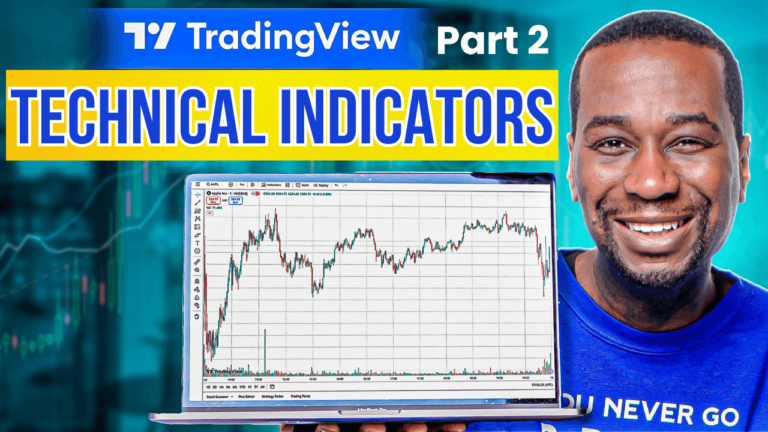
We're diving deep into how to fully customize your TradingView charts. We'll walk through step-by-step how to personalize every aspect of your chart settings, from ticker symbols and status lines to background themes and economic event indicators. If you're new to TradingView or just looking to optimize your trading setup, make sure to tune in and join me for part two where we learn how to set up technical indicators.
Create a free or paid account with TradingView: CREATE AN ACCOUNT HERE
Set Up Your Chart
To begin, load up TradingView and select the SPX ticker symbol, which represents the S&P 500 Index. Right-click on the chart and scroll down to "Settings." This menu is your gateway to fully customizing your chart. You can even move this settings window around if it obstructs your view, ensuring you can always see the changes you make in real-time.

Chart & Color Settings
- Candlestick Chart: Offers detailed visuals, showing opening, closing, high, and low prices.
- Line Chart: Simpler, displaying just the closing prices over your selected time frame.
With a candlestick chart, you have more options for customization than with a line chart. For example, you can change the color scheme for better visual clarity:
- Positive Days (Up Days): Change to white if you find red and green too Christmassy.
- Negative Days (Down Days): Change to black for a stark contrast.
Additionally, you can adjust the borders and wicks of the candlestick to match your preferred color scheme, enhancing readability.
Status Line Customization
The status line is the section at the top of the chart providing essential information about the stock. You can choose to display the company logo, ticker symbol, description, or a combination of these. Personally, I prefer to show the description as it provides comprehensive details without redundantly displaying the ticker symbol.
Chart Values & Indicators
Hovering your mouse over the chart reveals several values such as the open, high, low, and close (OHLC) of each candlestick. You might also see percentage changes and volume, which you can opt to relocate or remove depending on your preferences.
Bar Change Values: This option shows the percentage change from the previous day, though I find it clutters the screen.
Indicator Descriptions and Values: Tools like volume can be shown or hidden based on your needs.

Adding Alerts
The plus button allows you to quickly add an alert to your chart. You can also display economic events, such as GDP growth or personal income reports, to stay informed on broader market impacts.
After setting up your chart just the way you like it, remember to save it as a template. This way, you can quickly switch between different layouts - such as daytime and nighttime themes or specific settings for various strategies.
Continue on with Part 2:
Click here